Documentation/Getting started/Android TV
The app on a TV
The same app as on a phone, made for a remote: the sections are down the side, and a link or a key is sent to the TV from a phone.
- 01
Install the app
Android TV has its own line on the Download page. It needs Android TV 8.0 or newer. Move the APK to the TV — on a USB stick or with a file-transfer app — and open it: the TV asks for permission to install.
- 02
Open the app
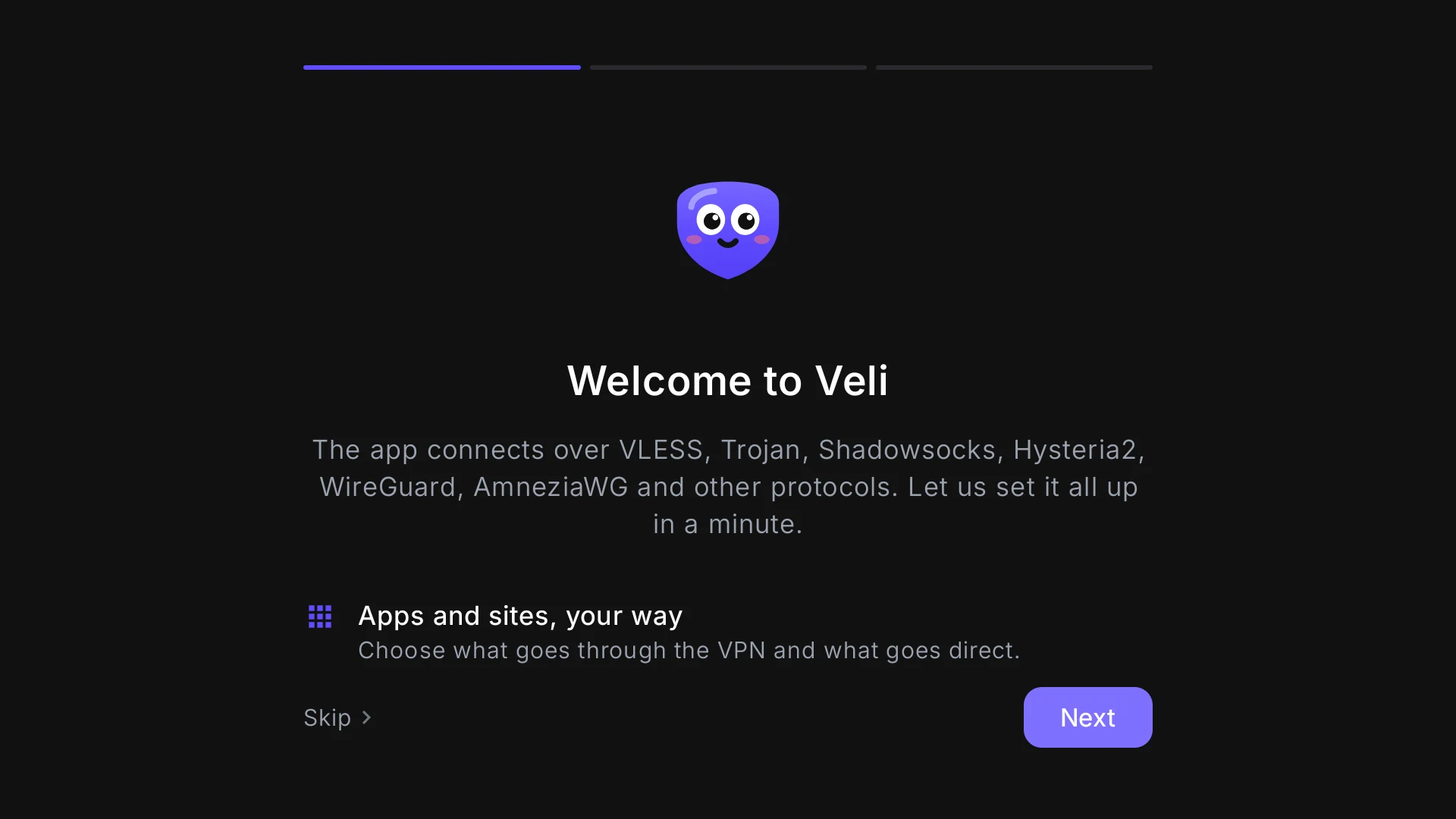
Veli appears among the TV’s apps. The first run is the same three steps as on a phone; the remote starts on “Next”.
- 03
Choose “From a phone”
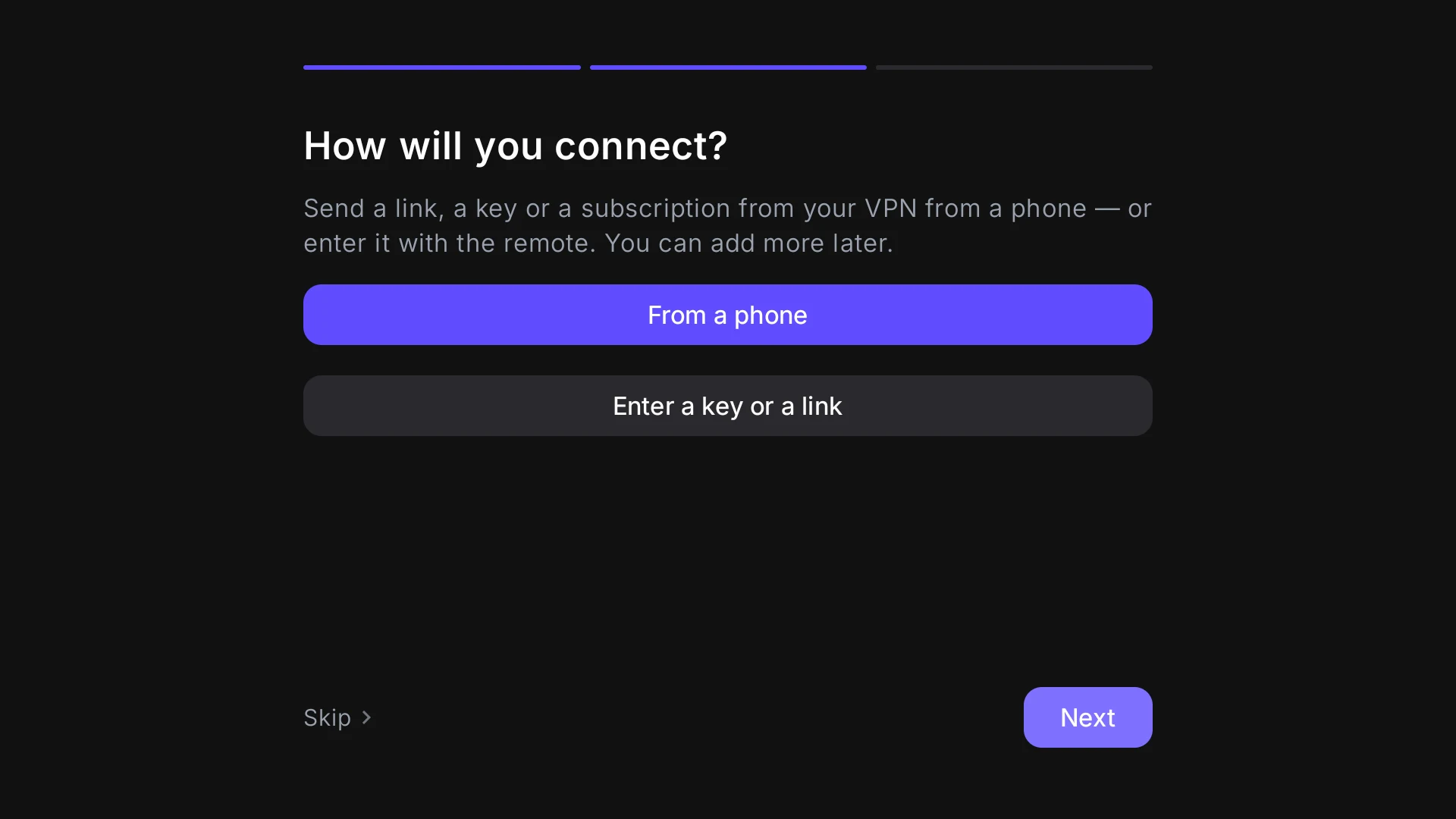
On the second step the TV asks how you are going to connect. Typing a long link with a remote is no fun, so the first button is “From a phone”. “Enter a key or a link” is the fallback.
- 04
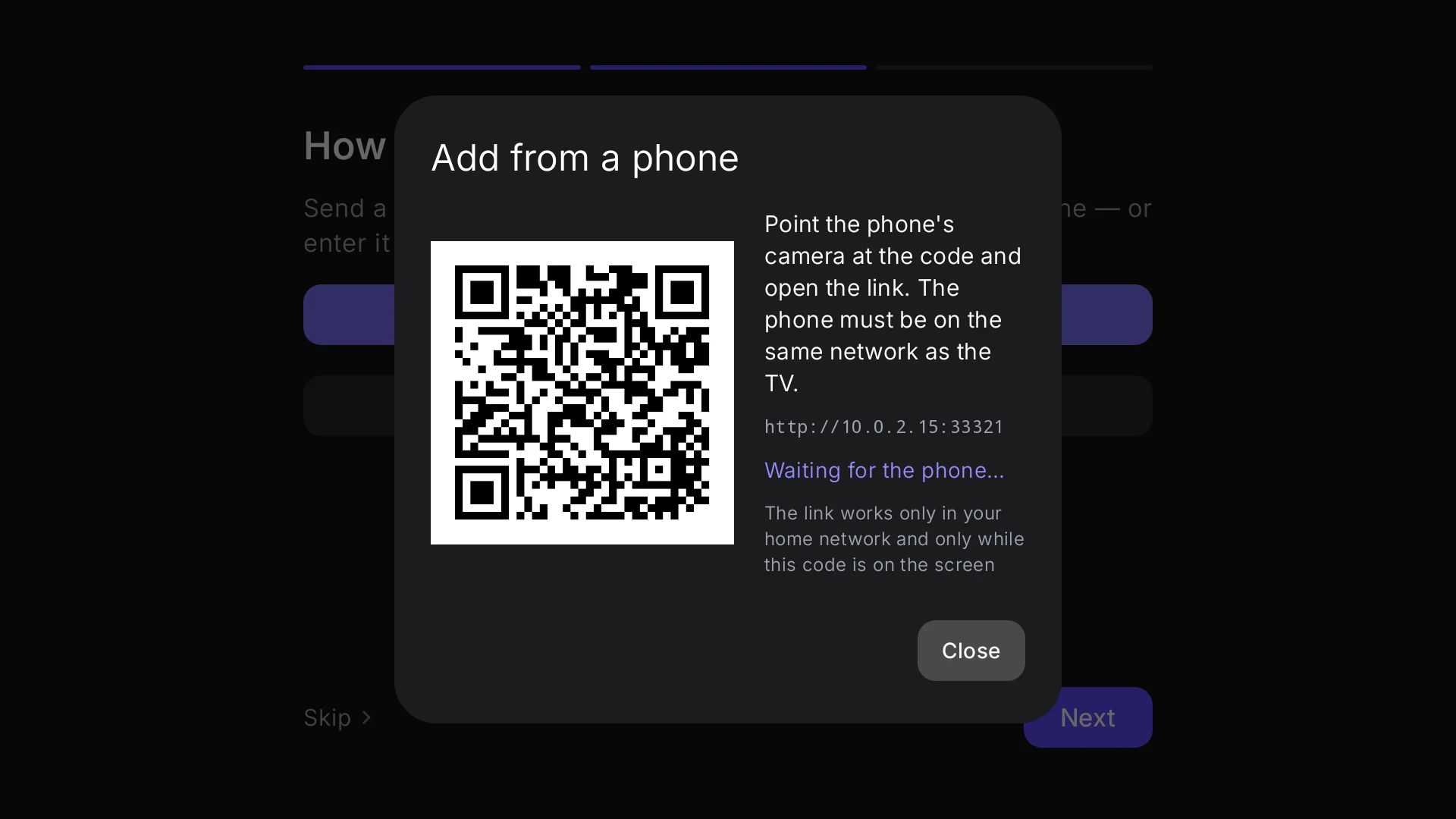
Point the phone’s camera at the code
The phone has to be on the same network as the TV. The code opens a page: paste a link, a key or a subscription address there — or choose a configuration file — and send it. The profile appears on the TV, and the phone says whether it worked.
The page is served by the TV itself: it works only in your home network and only while the code is on the screen. Our service takes no part in it.
- 05
Connect
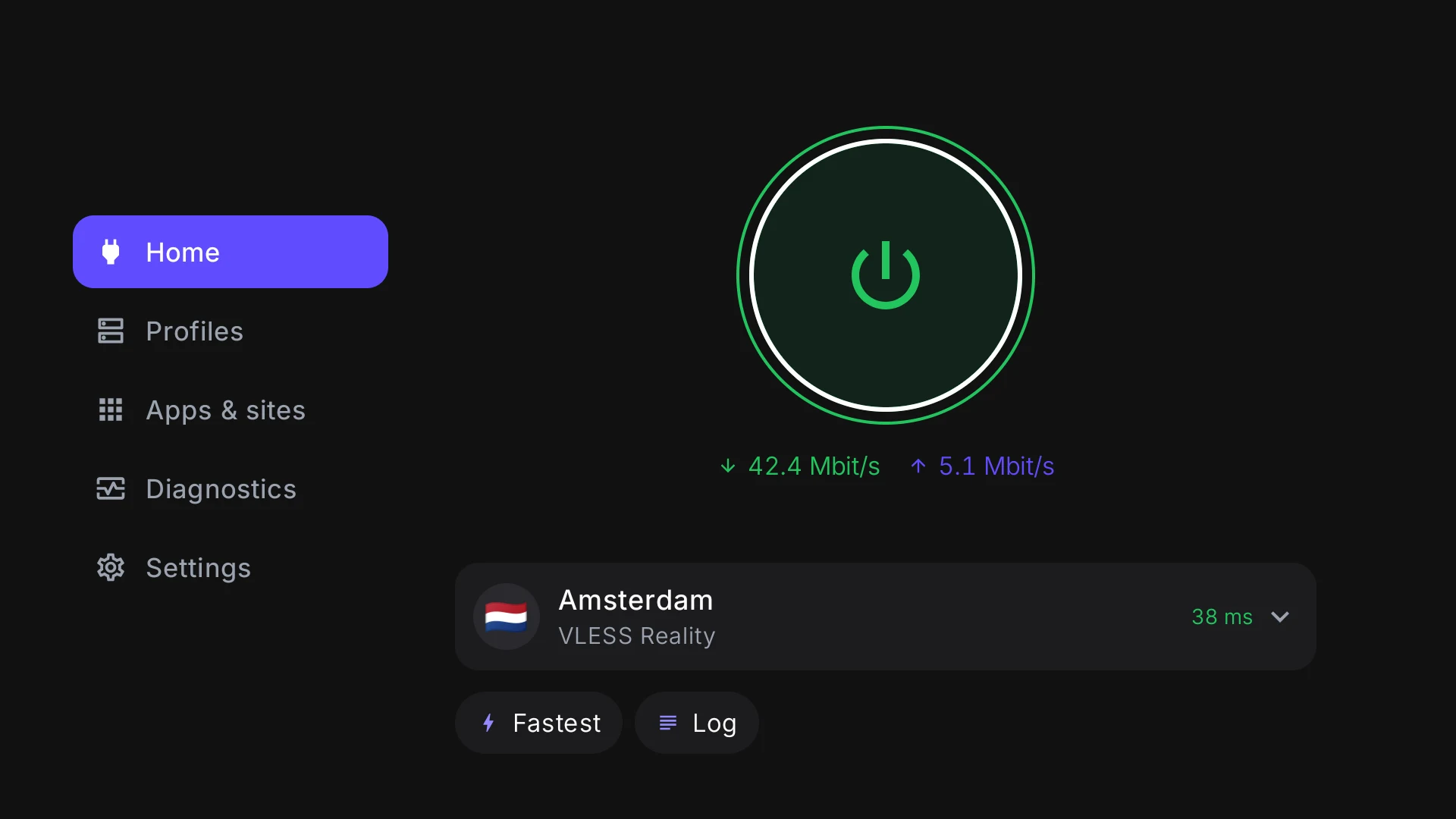
OK on the big button. The first time, the TV asks for VPN permission. The button turns green and the speed appears under it — the VPN is working.
The remote
No mouse and no touch — everything is done with the arrows, OK and Back.
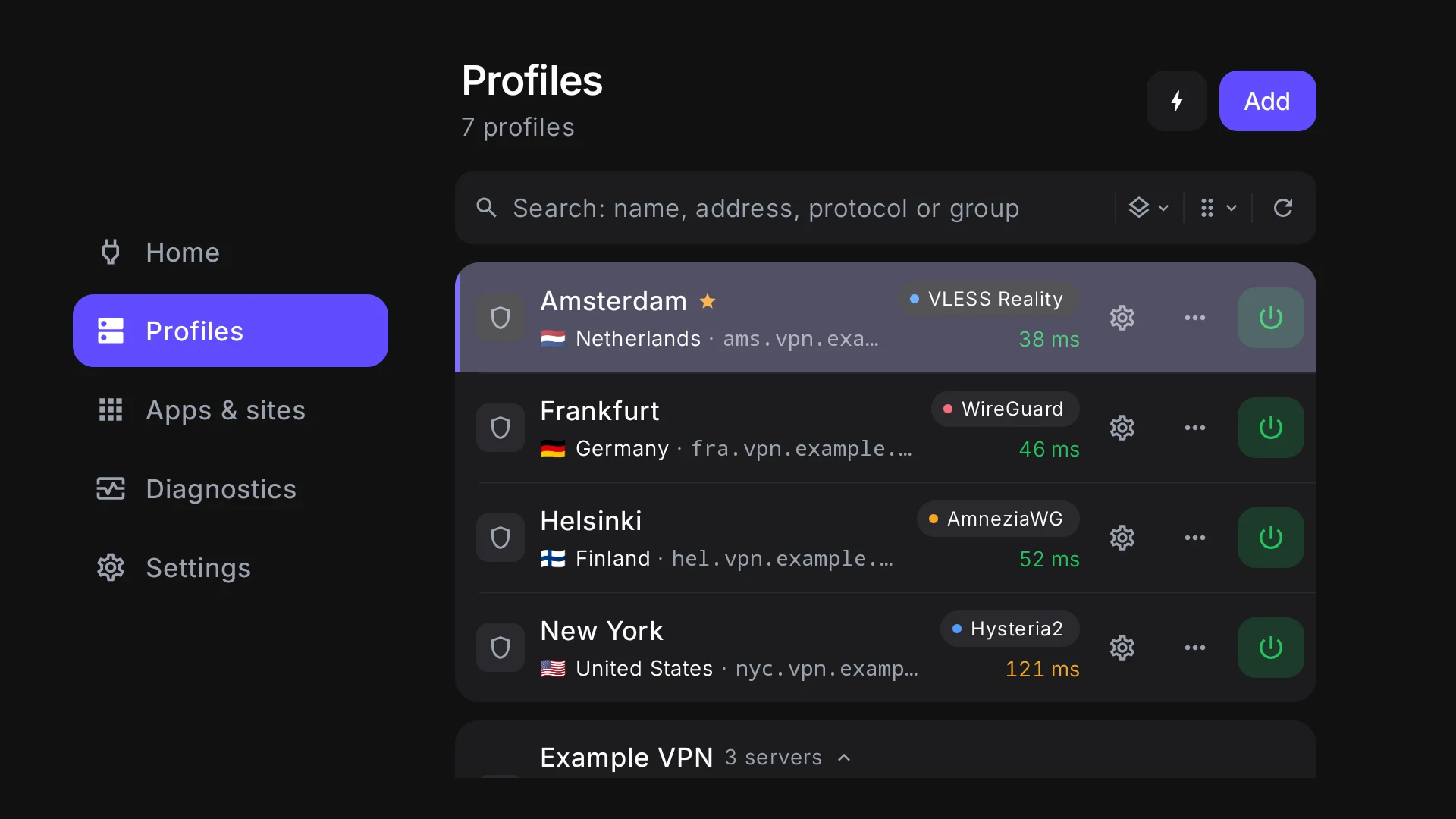
- Sections down the side
- The same five sections as on a phone are on the left. OK on a section opens it and takes the remote into the screen.
- A long OK
- On a profile’s row it opens the row’s menu. The order of the rows is changed there too — “Move up” and “Move down” instead of dragging.
- Back
- Returns to the previous screen — to where the remote was, not to the top of the page.
- Links
- A TV has no browser, so a link out of the app — the privacy policy, a provider’s page, the bot — is shown as a QR code for a phone.
What is different on a TV
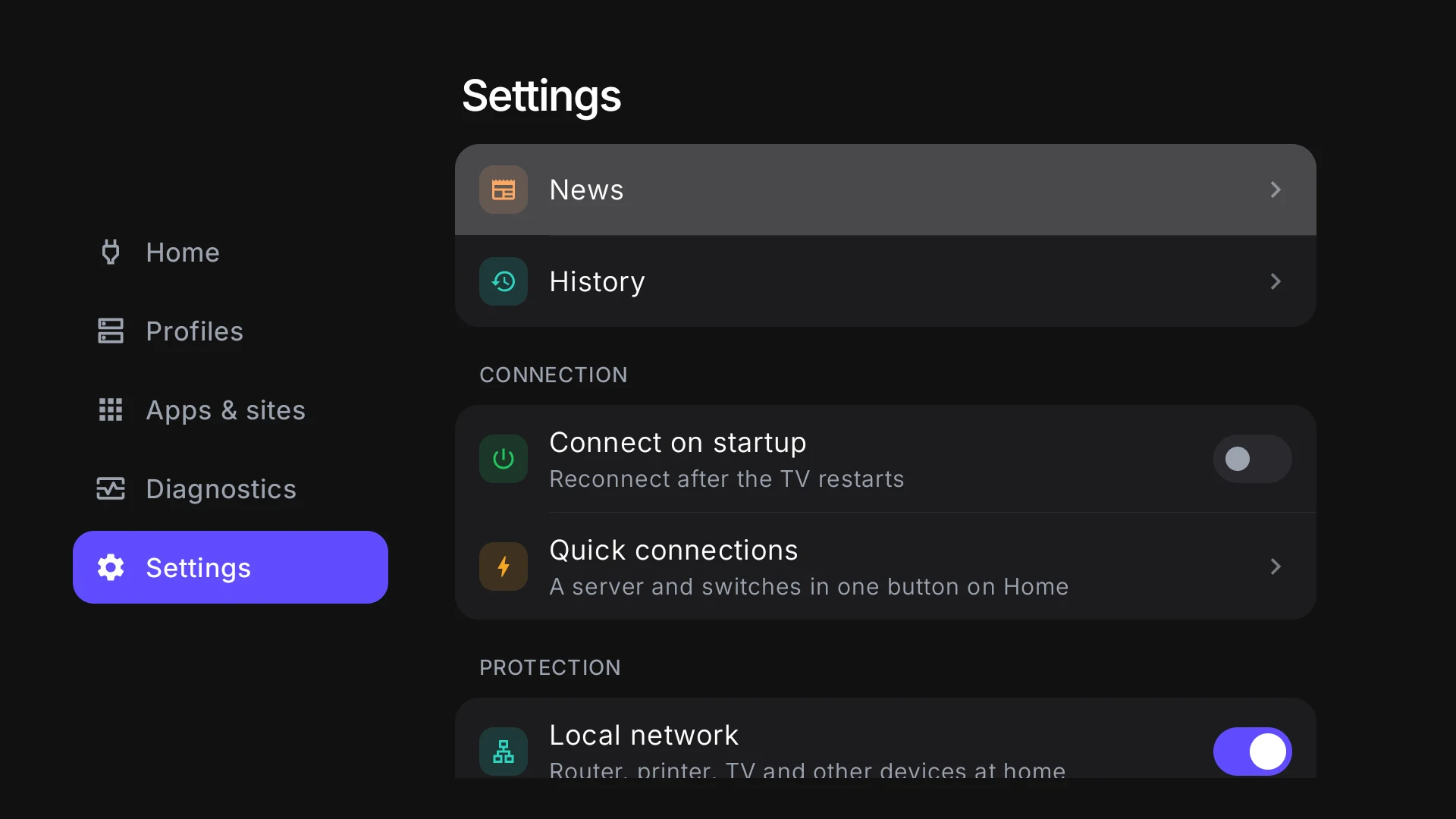
- To have the VPN come up by itself, switch on Settings → “Connect on startup”: the tunnel comes back after the TV restarts, without opening the app.
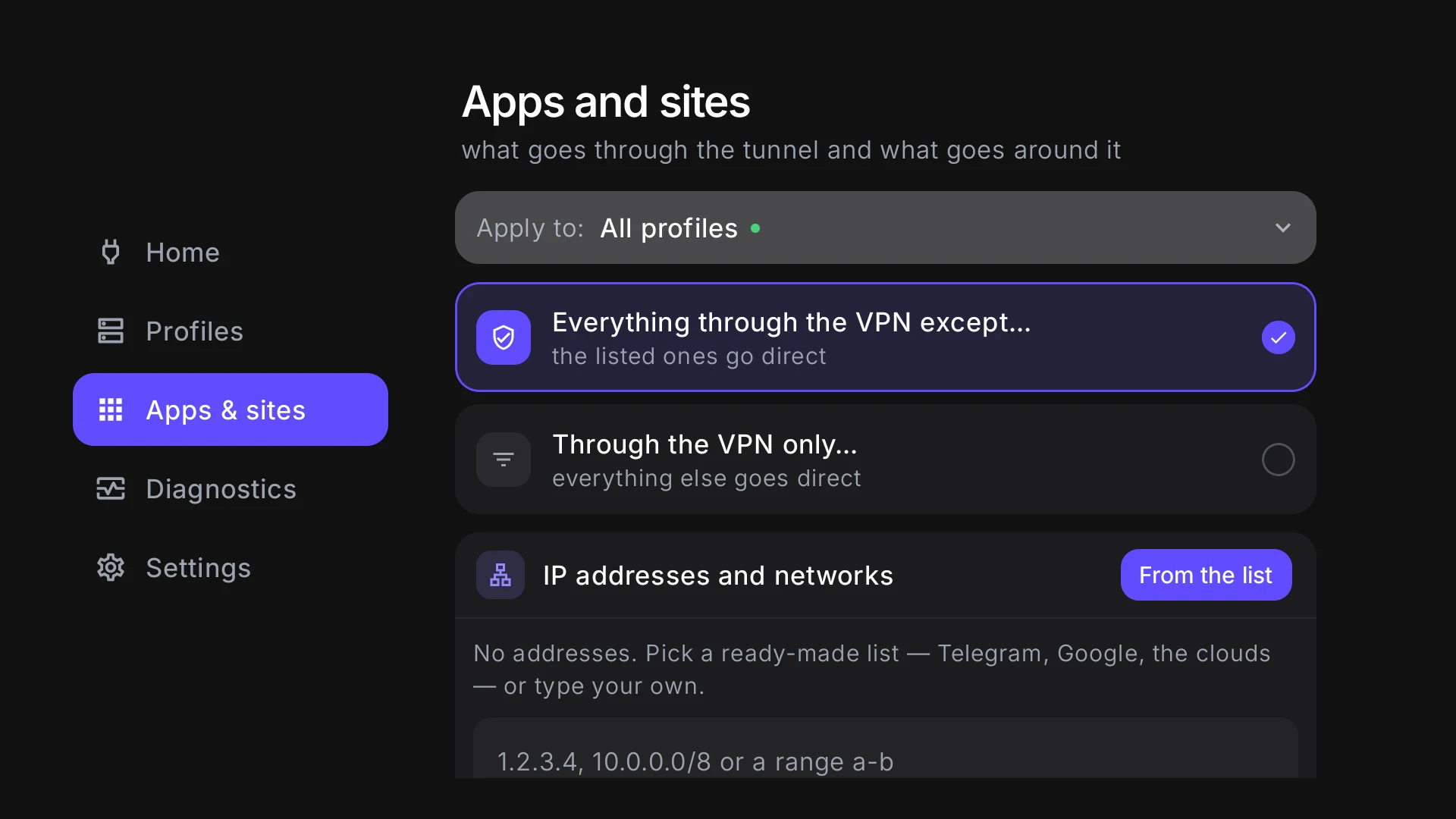
- In “Apps and sites” the picker lists the TV’s own apps: you can send only a video service through the VPN and leave the rest direct.
- There are no notifications: a dot on Settings and History tell you what happened without you.
- What a TV cannot do is not there: the QR code scanner, files, Share, rules for Wi-Fi networks, the kill switch and the backup.
If something is wrong
The phone does not open the page from the code
The phone and the TV have to be on the same home network: Wi-Fi or a cable for the TV, the same Wi-Fi for the phone — not a guest network and not mobile data. The code is good for five minutes: if it has run out, press “Show a new code”.
The TV says it is not on a home network
Connect it to Wi-Fi or by cable and open “From a phone” again. Without a network, “Enter a key or a link” is still there.
The request to allow a VPN did not open
The system of some TVs lacks the part a VPN needs — the app says so in a message. VPN apps do not work on such a TV.
How to add another server
Profiles → Add: the first row there is “From a phone” again.