On this page
Which TV you have
- A TV or set-top box running Android TV — the VPN app goes right onto it.
- A TV with another system — Android apps don't run on it. Plug in an Android TV box, or put the VPN on the router: every device at home goes out through it.
Samsung, LG, Apple TV and others: what each TV can do
A VPN app needs a system that lets apps bring up a VPN. Android TV and Google TV do, and Google TV is Android TV with a different home screen, so for a VPN app they are the same. Most other TV systems have no VPN apps at all. The quickest way to tell: if your TV has the Google Play store, it runs Android TV or Google TV.
Models with Android TV or Google TV: many Sony, TCL, Hisense, Xiaomi and Philips sets
Can a VPN app go on itYes
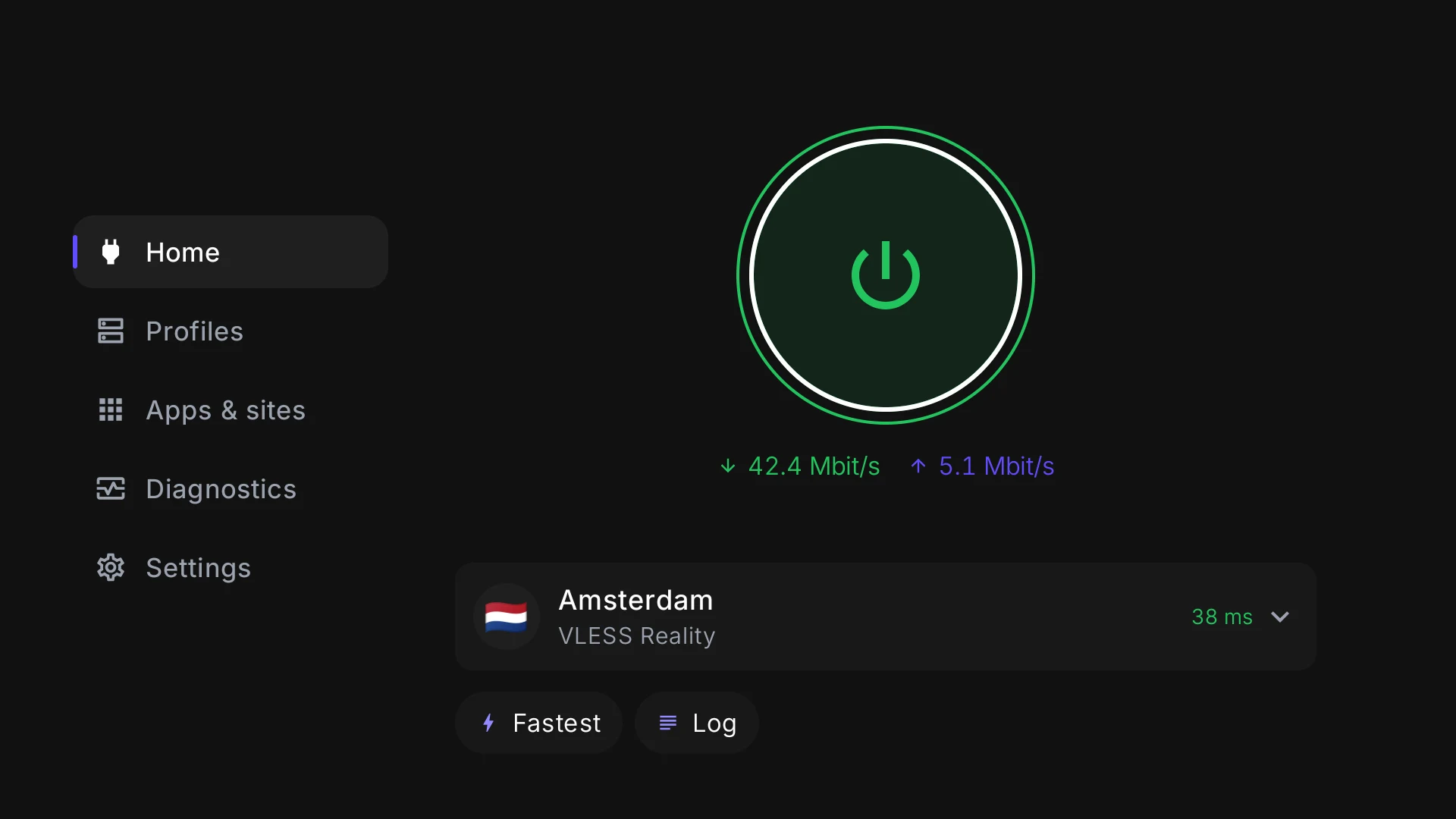
What to doInstall the Veli app for Android TV, as below
A set-top box or stick with Android TV or Google TV
Can a VPN app go on itYes
What to doPlug it into any TV over HDMI and install the Veli app on it
Samsung with Tizen
Can a VPN app go on itNo: its app store has no VPN apps
What to doA VPN on the router, or an Android TV box
LG with webOS
Can a VPN app go on itNo: its app store has no VPN apps
What to doA VPN on the router, or an Android TV box
Hisense with VIDAA
Can a VPN app go on itNo: its app store has no VPN apps
What to doA VPN on the router, or an Android TV box
A TV with Roku
Can a VPN app go on itNo
What to doA VPN on the router, or an Android TV box
Apple TV
Can a VPN app go on itVPN apps can run on tvOS 17 and newer, but there is no Veli for Apple TV
What to doA VPN on the router
Fire TV
Can a VPN app go on itFire OS is built on Android, and VPN apps for Fire TV are in Amazon's store
What to doA VPN app made for Fire TV, or a VPN on the router
- A VPN on the router — covers the TV and every other device at home at once. Veli on a router needs OpenWrt, and it can send only the TV through the VPN while the other devices go direct.
- An Android TV box — a box or stick in the TV's HDMI port gives any TV Android TV: the VPN app goes on the box, and you watch through it.
How to install it on Android TV
- 1
Move the APK to the TV
Download the client's installer and move it to the TV — on a USB stick or with a file-transfer app.
- 2
Open the file
The TV asks for permission to install. After that, the app appears among the TV's apps.
- 3
Add a server
Typing a long link with a remote is no fun. It's easier when the client takes the link from your phone — through a QR code on the screen.
- 4
Connect
The first time, the TV asks for VPN permission. Without it, a VPN app can't work.
Worth knowing
- You can send only a video service through the VPN and leave the TV's other apps direct.
- To have the VPN come back after the TV restarts, turn on connecting at startup in the client.
- The system of some TVs lacks the part a VPN needs. VPN apps don't work on such a TV.